An Eight Mile Services project · open source

MailOps

Turn a shared inbox into an operating picture.

MailOps continuously brings Inbox and Sent mail together, assigns every new message a topic and priority, then turns the classified picture into a concise brief of findings and recommended actions.

Open MailOpsView on GitHub

API

NestJS 11

Web

Next.js 16

State

Postgres

Flow

IMAP → LLM

mail_sorting_room

live pipeline

sales@partners@marketing@IMAP pollinbox + sentPostgresthreaded messagesClassifytopic + prioritySummarisefindings + actionsDashboardoperating picture

Product tour · 01

Your shared inbox, finally briefing you back.

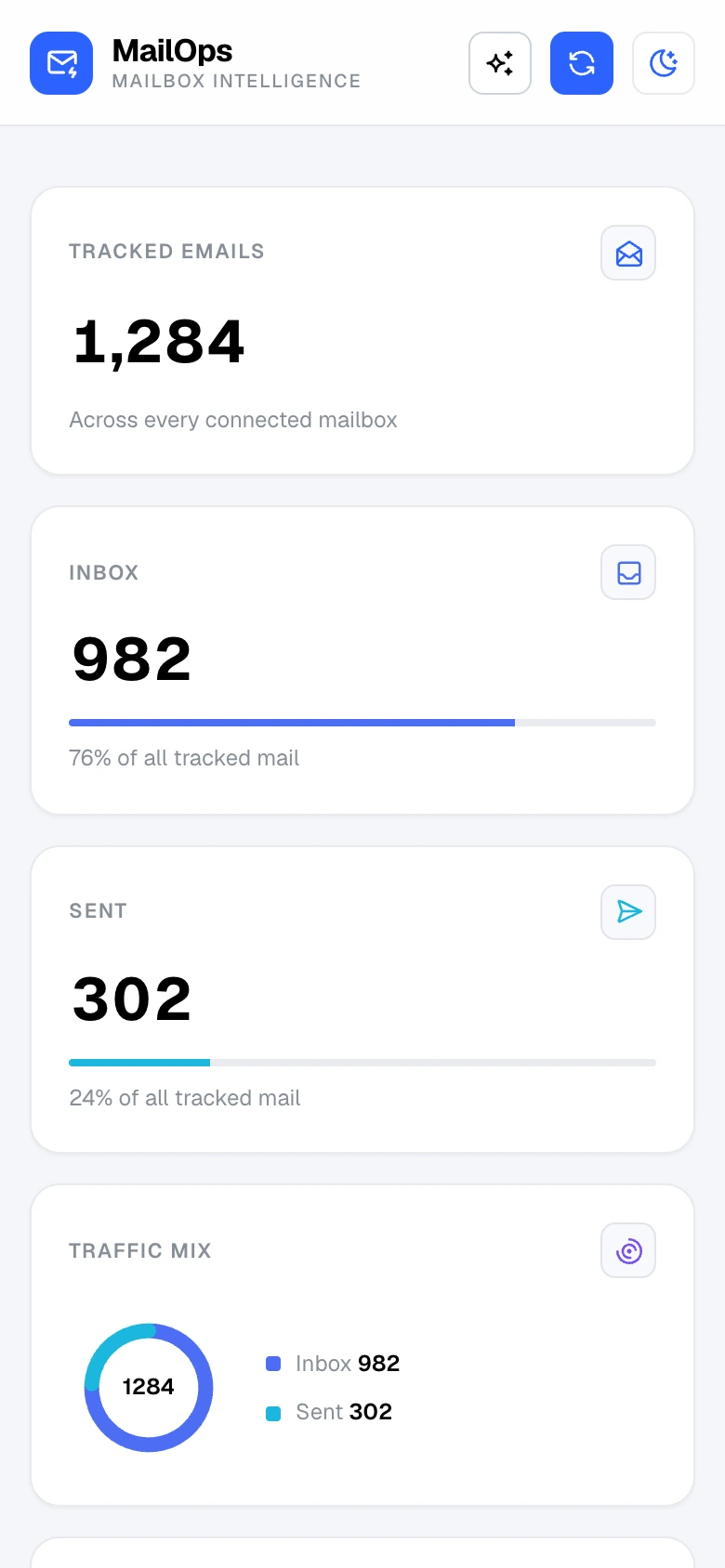
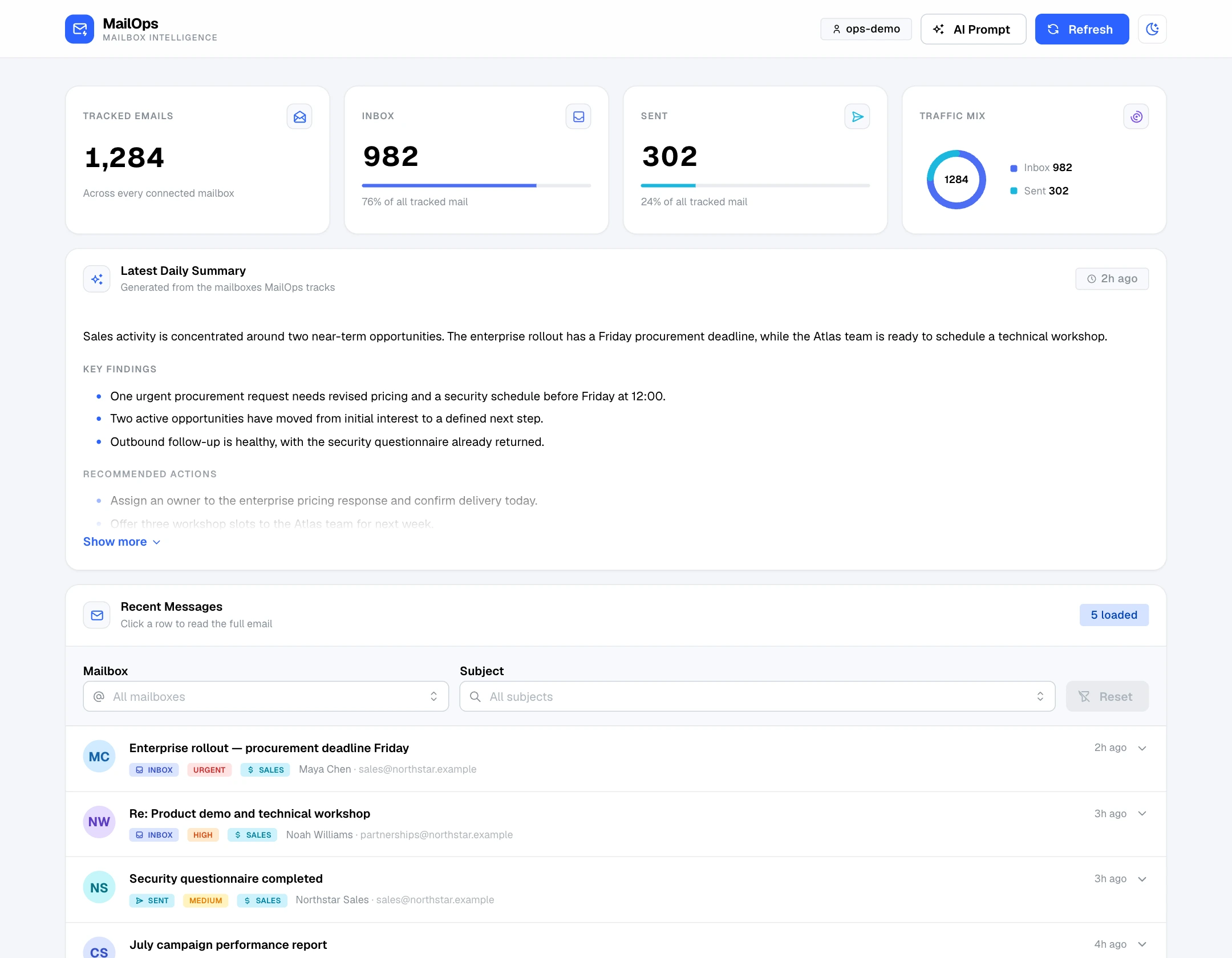
MailOps turns connected sales mailboxes into one calm operating view: traffic at the top, the latest brief in the middle and the messages that need attention underneath.
mailops / dashboard

MailOps sample mobile dashboard with tracked, inbox, sent and traffic-mix cards
MailOps sample desktop dashboard with mailbox counters, a daily summary and recent messages

See the whole flow

Tracked, inbox and sent counts bring every connected mailbox into the same picture, with the traffic mix alongside them.

Start with the brief

The latest structured overview, key findings and recommended actions sit above the queue, ready when the day begins.

Keep the evidence close

Filter by mailbox or subject, then read direction, classification and message detail without losing the list around it.

The signal path · 02

From arriving email to an actionable brief.

The workflow is intentionally legible. Mail is collected first, classification adds a small typed vocabulary, and the summary turns that organised context into work a team can pick up.

Mailbox signal flow

configured account → prioritised action

01 · Sync

Collect the conversation

Each configured IMAP account is polled for inbox and sent mail, including threading headers plus read and replied flags.

↳ messages + state

02 · Classify

Add a shared language

Pending messages receive one of two topics and one of four priorities through schema-validated structured output.

↳ topic + priority

03 · Summarise

Compress the signal

Mailbox statistics and per-message context are shaped into an overview, key findings and recommended actions.

↳ one current brief

04 · Act

Keep context attached

The brief and classified queue live together, so the team can move from a recommendation back to the source email.

↳ decision-ready queue

Triage in context · 03

Priority without opening every thread.

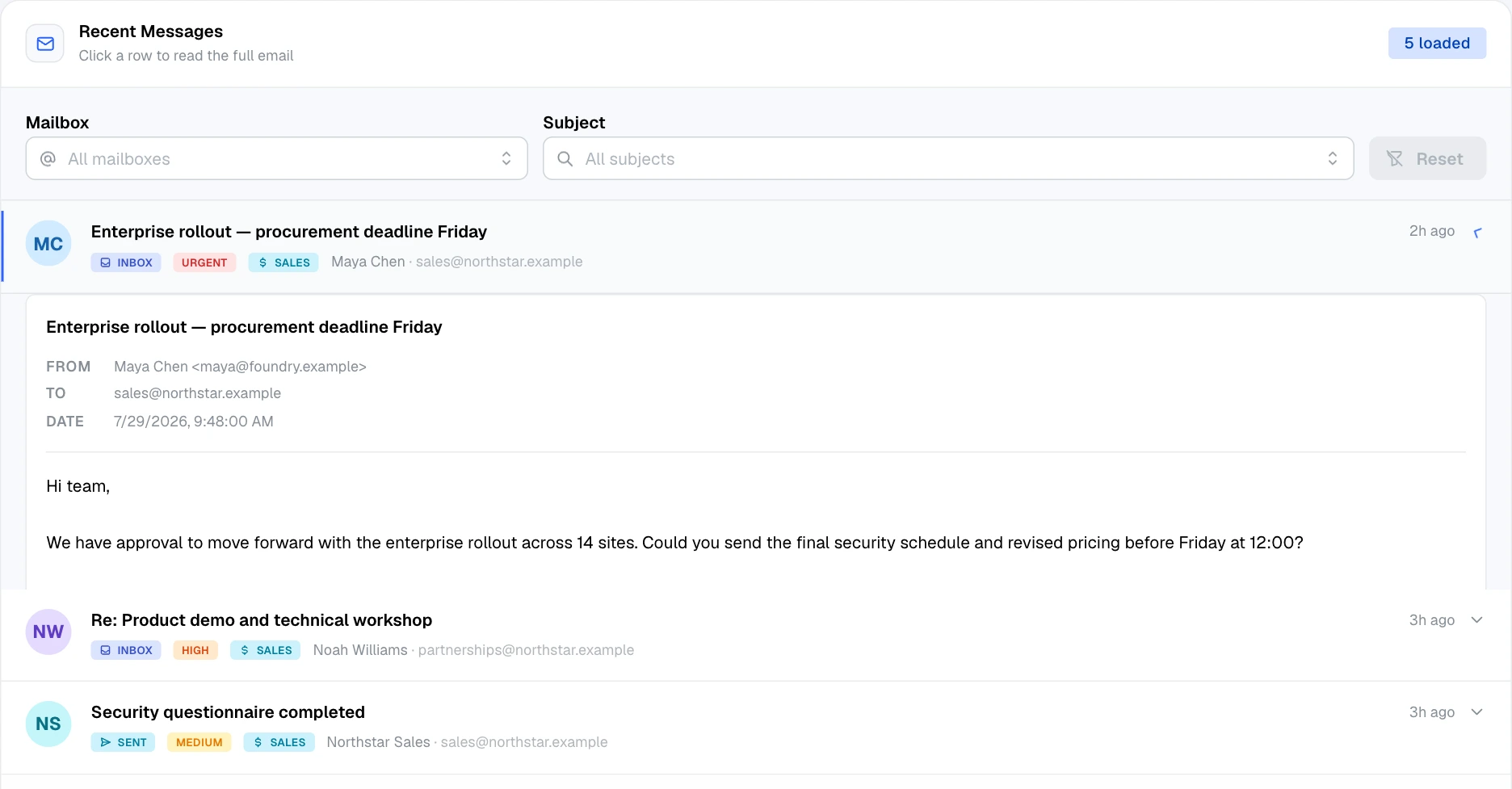
MailOps adds just enough structure to make a busy shared inbox scannable, while keeping the original message one click away. Classification supports judgement; it does not replace the email.
Expanded message · sample mailbox data

MailOps recent-message list with an urgent sales email expanded to show its full contents

A vocabulary everyone shares

Sales or marketing. Urgent, high, medium or low. The badges make the model’s classification visible instead of burying it in a score.

Narrow before you dig

Mailbox and subject filters reduce the queue, while inbox and sent direction stays attached to each row.

Read the source in place

Expand a row to inspect the sender, recipient, date and message body without leaving the surrounding queue.

The daily brief · 04

Begin with what changed, not with what arrived.

A mailbox count tells you how busy the queue is. The daily brief goes one step further, organising the selected window into a consistent, decision-ready shape.

Latest summary

One current brief, refreshed on every run.

MailOps combines classification statistics with per-message context, validates the model response as structured output and upserts the result into a single summary row.

Overview

The short operational readout.

Key findings

The signals worth carrying forward.

Recommended actions

The next work the brief suggests.

Cropped MailOps sample dashboard showing the latest daily summary

Interface shown with sample mailbox data.

Human direction · 05

You decide what “important” means today.

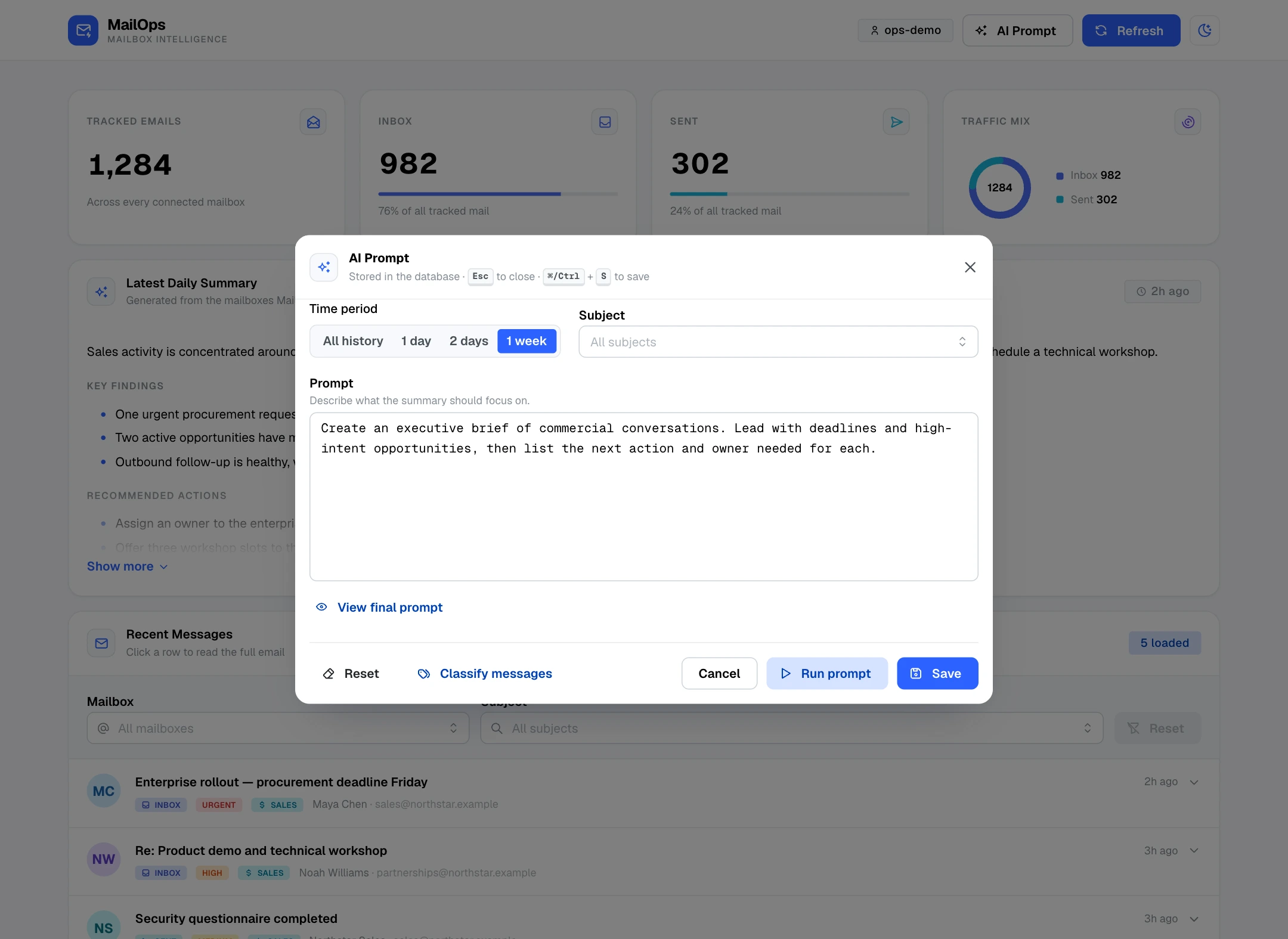
The summary instruction is an operational control, not a hidden system setting. Shape the time window and focus from the dashboard, then save it or run the work on demand.
AI prompt panel · sample configuration

MailOps AI Prompt panel with time period, subject and editable prompt controls

Set the window

Choose one day, two days or one week for an on-demand summary.

Write the focus

Describe what the summary should prioritise in plain language, from deadlines to opportunities and the owners needed next.

Save or run now

Store the prompt for later, generate the summary immediately or classify messages that are still pending.

The operating rhythm

repository defaults

2

Topics

sales · marketing

4

Priorities

urgent · high · medium · low

60 s

Default poll

configurable IMAP interval

00:00

Daily jobs

midnight · Europe/London

Operationally honest

A clear boundary, not a black box.

MailOps is explicit about how sessions are carried, how state changes and where recovery happens. It is equally explicit that classification and summarisation use external model calls.

Scope note

The IMAP poll searches the most recent three days. It is an operating sync, not a full-history importer.

Explicit session cookie

A successful login issues a seven-day JWT in an httpOnly, SameSite=Lax cookie that is marked Secure in production.

Migration-led schema

TypeORM synchronisation is disabled. Database structure is created and changed through explicit migrations.

Retryable classification

A failed batch is logged and skipped for that run; unclassified messages remain pending for a later retry.

The AI boundary is visible

Classification and summarisation send email context to the configured OpenAI-backed models. Deployment should account for that data flow.